
| Shape | Area | Perimeter | |
|---|---|---|---|
| Total | — | — |
Tip: each grid square represents the real-world size you set above, so drawings are to scale. Click near your first point to close a shape. You can also type an exact length for any edge once a shape has at least two points.
Not sure how to calculate area because your shape is uneven? This is a common problem. Most people do not struggle with formulas. They struggle because they cannot measure every side.
Sometimes you only know how the shape looks. A garden, a room, or a land plot does not come with perfect dimensions. You can see it, but you cannot calculate it.
That is where this tool helps. Instead of measuring sides, you can draw the shape and calculate the area instantly.
Draw Shape Calculate Area Online
A draw area calculator turns a shape you sketch on screen into a real-world area, once you set the scale of your drawing. This tool lets you draw a shape and calculate area directly on screen. You do not need formulas or coordinates, and typing exact measurements is optional — enter them for any edge you know, or simply draw to the grid.
You simply click to mark points around your shape. The tool connects those points and calculates the total area.
This works well for irregular shapes where measuring each side is difficult or not possible.
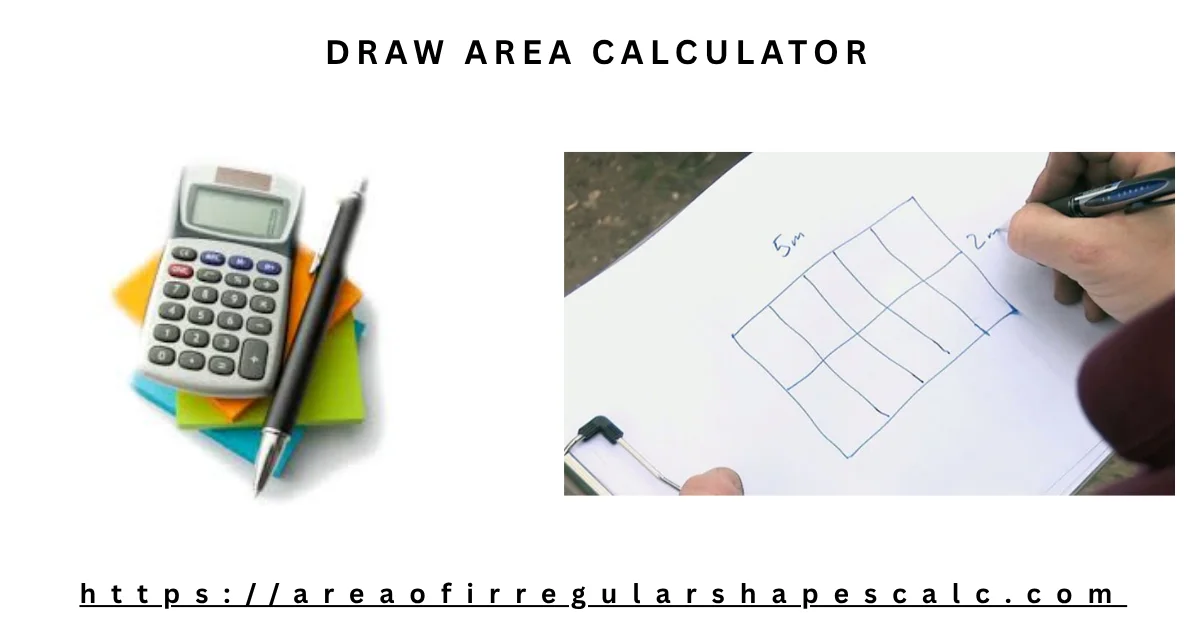
How to Draw Area and Calculate Area Online
Using this tool feels simple, but small mistakes can affect accuracy. Follow these steps carefully.
1) Set your scale
Before drawing, tell the tool what one grid square represents in real life (for example, 1 square = 1 meter, or 1 square = 5 feet). Every shape you draw is measured against this scale, so set it first.
2) Start drawing the shape
Click on the canvas to add points. Each click represents a corner of your shape. Turn on “Snap to grid” to line points up with the scale you just set.
3) Follow the boundary
Move along the edges of the shape. Keep clicking around the boundary in one direction.
If the shape has curves, add more points to match the shape closely.
4) Close the shape
Click back near your first point, or use the “Finish shape” button. This step is important. Without closing the shape, area cannot be calculated correctly.
5) Get the area (and fine-tune it)
Once the shape is complete, the calculator shows the area and perimeter instantly. If you know the exact length of any edge, type it into the edge editor below the canvas and the shape adjusts to match.
If the result looks wrong, check your scale setting first, then check that the shape was drawn correctly.
How Drawing Area Calculator Works
The tool works by using the points you draw.
Each point becomes a corner of the shape. When all points are connected, they form a closed boundary.
The calculator then measures the area inside that boundary automatically.
You do not need to calculate anything manually. The drawing itself becomes the input.
Example of Draw Shape and Calculate Area
Example 1: Garden Area Calculation by Drawing
Imagine you want to measure a small garden. The shape is not a perfect rectangle.
Step 1: Start placing points around the garden boundary
Step 2: Add more points where the shape changes direction
Step 3: Close the shape by connecting the last point to the first
Step 4: The tool shows the total area of the garden
What usually goes wrong: – Too few points are used – Corners are skipped
Fixing these gives a more accurate result.
Example 2: Draw & Calculate Room Layout
You can draw the shape of a room with uneven walls. Add points along each wall and calculate the floor area.
Example 3: Draw Land Plot & Calculate
For irregular land, mark each boundary corner. The calculator gives the total plot area without measuring each side.
Example 4: Roof or Surface Area by Drawing Calculation
You can also draw roof outlines or surface shapes to estimate material requirements.
When to Use Draw Area Calculator
This tool is useful when you can see the shape but cannot measure it easily.
Common situations:
- You have a rough idea of a garden or land shape, but no exact measurements
- A room has uneven walls, and measuring each side is confusing
- You are working with a sketch or layout, and converting it into numbers is difficult
In these cases, people often try to guess measurements or simplify the shape break it into smaller parts
These methods take time and reduce accuracy.
Drawing the shape directly is faster and more practical.
Accuracy Tips When You Draw Area
Accuracy depends on two things: the scale you set and how carefully you draw the shape.
Problem 0: Scale not set, or set incorrectly
This is the most common source of wrong results. If the grid scale does not match your intended real-world size, every measurement will be off by the same factor, no matter how carefully you draw.
What happens: – Area and edge lengths are consistently too big or too small
Fix: – Set the grid size and unit at the top of the tool before you start drawing, and double-check it against something you know (a door is roughly 0.8-1 m wide, for example)
Problem 1: Too few points
Users often place only a few points.
What happens: – Shape becomes rough – Area is not accurate
Fix: – Add more points, especially on curves
Problem 2: Skipping corners
Some users do not mark sharp turns properly.
What happens: – Shape changes – Area becomes incorrect
Fix: – Always click on every corner
Problem 3: Shape not closed
If the last point does not connect to the first:
What happens: – Area cannot be calculated correctly
Fix: – Always close the boundary
Problem 4: Drawing too far from edges
Users sometimes draw loosely around the shape.
What happens: – Area becomes larger than actual
Fix: – Follow the boundary closely
✔ Practical Tip
If your result looks unrealistic, check your scale setting first, then check your drawing.
Most errors come from an unset scale or from how the shape is drawn, not from the calculator itself.
Draw vs Image vs Coordinates – Which to Use?
Each method solves a different problem.
- Draw tool: Use when you can see the shape and want to draw it
- Image tool: Use when you already have a picture and want to trace it
- Coordinate tool: Use when you have exact X and Y points
Choosing the right method saves time and improves accuracy.
Frequently Asked Questions
1. How to draw and calculate area online?
Set your grid scale, click to add points around your shape, close the boundary, and the tool calculates the area and perimeter instantly.
2. Can I draw a shape to calculate area?
Yes. You can draw any shape by marking points, and the calculator will compute the area.
3. Is drawing area calculator accurate?
It is accurate if the grid scale matches your real-world measurement and the shape is drawn carefully with enough points. If you know the exact length of any edge, you can type it in and the tool will use that instead of the drawn length.
4. Is this tool free to use?
Yes. You can draw and calculate area online free without signup.
5. What is the easiest way to calculate area of an irregular shape?
The easiest way is to draw the shape visually using this tool instead of using formulas or manual calculations.
6. Can I enter exact measurements instead of drawing freehand?
Yes. Draw the rough shape, then open the edge length editor below the canvas and type the exact length for any side. The shape updates to match, and the area recalculates automatically.
7. Can I draw a simple rectangle or room with exact dimensions?
Yes. Turn on “Snap 90°” to keep corners square while you draw, then use the edge length editor to set the exact length and width. This works well for rooms, walls, and other rectangular layouts.