Irregular Polygon Area Calculator
Calculate the area of any irregular polygon using coordinates and the Shoelace (Gauss) Formula. Supports negative values and unlimited sides.
| # | X | Y |
|---|
Struggling to calculate the area of a shape that does not have equal sides? This is a common problem when working with land plots, map points, or custom layouts.
Most real-world shapes are not perfect squares or rectangles. They have uneven sides and angles, which makes manual calculation difficult and time-consuming.
If you already have the coordinates of each corner, you do not need to break the shape into parts or guess measurements. You can simply enter the points into this calculator and get the exact area instantly.
Calculate Area of an Irregular Polygon
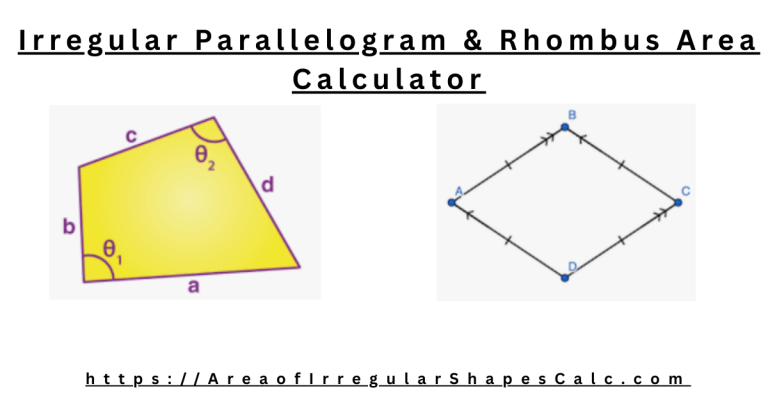
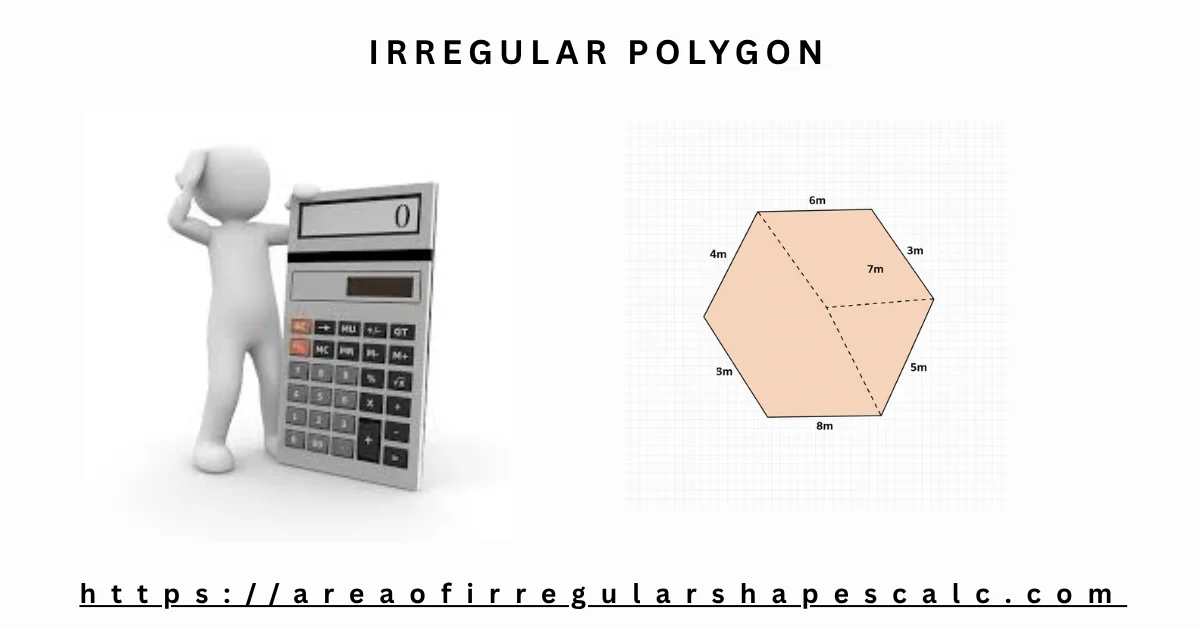
An irregular polygon is a shape with unequal sides and angles. Because of this, there is no single simple formula like regular shapes.
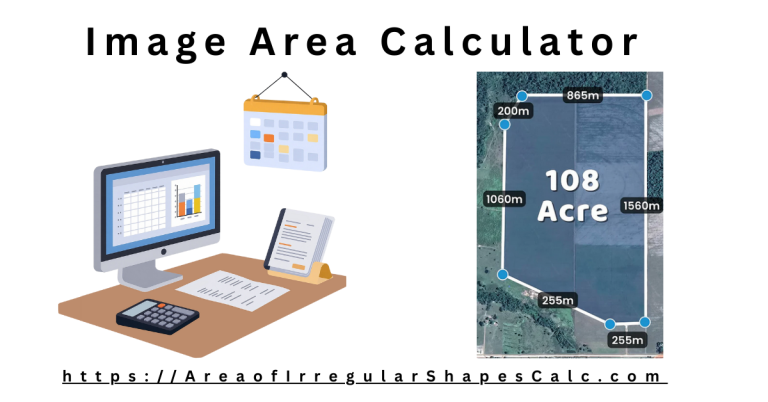
In practical situations, this becomes a challenge. For example, a land boundary may have multiple corners with no uniform pattern. Measuring each side and dividing the shape manually often leads to errors.
This calculator removes that complexity. You only need to enter the coordinates of each point. The tool then calculates the total enclosed area automatically.
This approach works for both simple and complex shapes, no matter how many sides they have.
How to Use the Irregular Polygon Area Calculator
Using the calculator is simple, but accuracy depends on how the points are entered.
Start by entering the X and Y coordinates of each corner. Each pair represents one point of the polygon.
Add points in sequence, moving around the boundary of the shape. This ensures the shape is correctly formed.
You can add or remove points depending on your shape. After entering all values, select the unit if needed and click on calculate.
The area will be displayed instantly.
How to Find the Area of an Irregular Polygon
Manually finding the area of an irregular polygon can be confusing. A common method is to divide the shape into smaller triangles or rectangles. However, this becomes difficult when the shape has many sides.
A better approach is to use coordinates. If you know the position of each corner, you can calculate the area using a coordinate-based formula.
Instead of applying that formula step by step, this calculator does it for you. You just enter the points and get the result without manual work.
Irregular Polygon Area Formula (Shoelace Formula)
This calculator uses a coordinate-based method called the Shoelace formula.
A = \frac{1}{2} \left| \sum_{i=1}^{n} (x_i y_{i+1} - x_{i+1} y_i) \right|The formula works by connecting each point to the next one in order. It multiplies and subtracts coordinate values in a pattern to calculate the total area.
You do not need to use this formula manually. The calculator applies it automatically once you enter the coordinates.
Calculate Area of Polygon Using Coordinates
Coordinates define the exact position of each corner of a shape. When all points are connected, they form a closed boundary.
This calculator uses those points to measure the area inside the shape. It does not rely on side lengths or angles.
This is useful in situations like:
- Measuring land using survey points
- Calculating plot size from maps
- Working with layout or design coordinates
Even with many sides, the calculation remains accurate.
Examples of Irregular Polygon Area Calculation
Understanding becomes clearer with an actual calculation example.
Example 1: 4-Point Irregular Polygon (With Calculation)
Suppose you have the following coordinates:
(1,1), (4,1), (4,5), (2,4)
Step 1: Write points in order and repeat the first point at the end
(1,1), (4,1), (4,5), (2,4), (1,1)
Step 2: Apply the Shoelace pattern
(1×1 + 4×5 + 4×4 + 2×1) - (1×4 + 1×4 + 5×2 + 4×1)Step 3: Solve
(1 + 20 + 16 + 2) - (4 + 4 + 10 + 4) = 39 - 22 = 17Step 4: Divide by 2
A = = 8.5So, the area of the polygon is 8.5 square units.
This shows how the calculation works step by step. The calculator performs all these steps instantly.
Example 2: 5-Point Irregular Polygon
Consider a polygon with five coordinate points. In this case, you only need to enter all five points in order.
The calculator will automatically connect each point and apply the same formula in the background. You do not need to divide the shape or perform manual steps.
This is useful when working with irregular land plots that do not follow a simple shape.
Example 3: Polygon with Many Sides
Some shapes have many corners, such as boundary maps or layout designs. These shapes can have 6, 8, or even more points.
Manually calculating such shapes is difficult and time-consuming. With this calculator, you can enter all points and get the area in one step.
There is no strict limit on the number of sides, which makes it practical for complex shapes.
Example 4: Coordinates from Real-World Data
In real scenarios, coordinates often come from survey tools, GPS, or mapping software.
Instead of converting these points into regular shapes, you can directly input them into the calculator. The tool processes the coordinates and gives an accurate area without additional steps.
This makes it especially useful for land measurement, planning, and design work.
When to Use This Calculator
This tool is useful when dealing with real-world irregular shapes.
You can use it when:
- You have coordinates from a land survey
- You want to measure an uneven plot
- You are working on construction layouts
- You are solving coordinate geometry problems
In these cases, manual calculation is slow and error-prone. This calculator provides a faster and more reliable solution.
Frequently Asked Questions
How do you find the area of an irregular polygon?
You can use coordinates of each point and apply a formula like the Shoelace method. This calculator performs that calculation automatically.
What formula is used to calculate irregular polygon area?
The Shoelace formula is used. It calculates area using coordinate points arranged in order.
Can I calculate area using coordinates?
Yes. Enter the X and Y values of each point. The calculator uses those coordinates to compute the area.
Does this work for any number of sides?
Yes. You can add as many points as needed. The calculator supports polygons with multiple sides.
What is the easiest way to calculate irregular polygon area?
The easiest way is to use a coordinate-based calculator. It avoids manual errors and gives quick results.