Area Calculator from Image
Have a photo of a plot, floor plan, or map—but no measurements? This is where most people get stuck. You can see the shape, but you cannot calculate the area.
Redrawing the shape or measuring every side is slow and often wrong. If you already have an image, you can use it directly. Upload the image, set one known distance, trace the boundary, and get the area in seconds.
This tool is built for that exact situation.
Calculate Area from Image Online
This image area calculator lets you calculate area from a picture without side lengths or coordinates.
It works by combining two things: - a scale (real distance in the image) - a trace (the boundary you draw)
Once both are set, the calculator converts the traced image into real area units like square meters or square feet.
This is useful when the only data you have is an image.
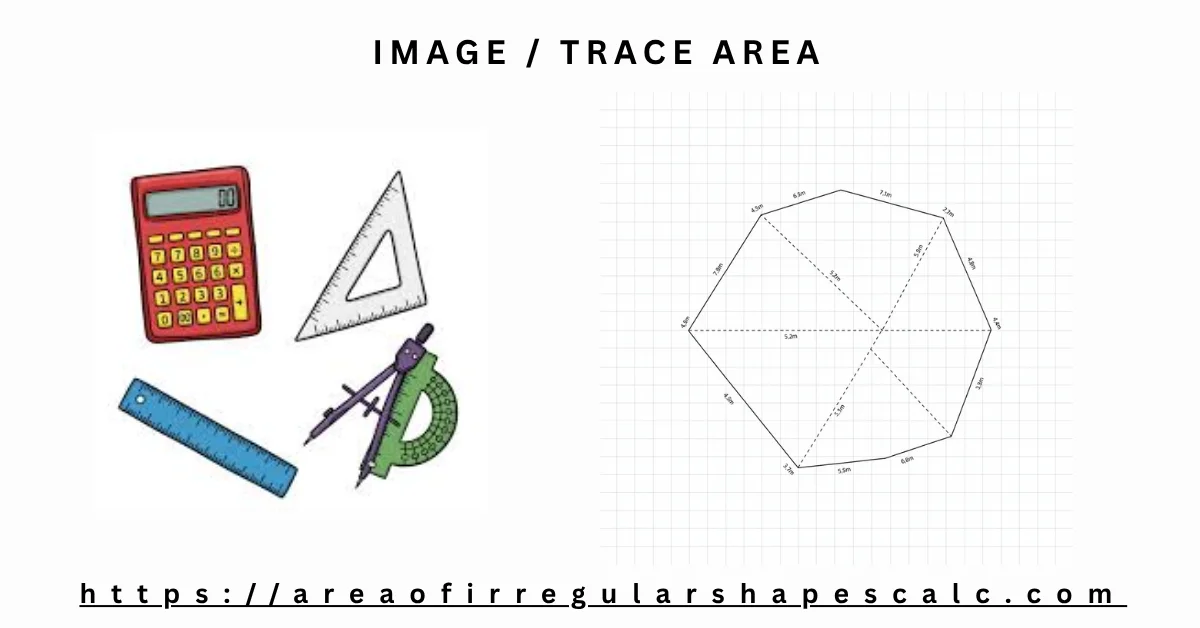
How to Use the Image Area Calculator (Step-by-Step)
Follow these steps in order. Each step affects accuracy.
1) Upload your image
Use a clear image: map, floor plan, satellite view, or photo. Blurry images make tracing harder.
2) Set the scale (most important)
Pick a line in the image whose real length you know. For example, a wall of 5 meters or a road width of 10 meters.
Mark that line and enter its real value. Now the tool knows how pixels convert to real units.
3) Trace the boundary
Click around the edges of the shape, point by point. Move in one direction (clockwise or anticlockwise).
Keep points close to the boundary. Fewer points on curves can reduce accuracy.
4) Calculate area
Click calculate. The tool uses your trace and scale to return the area instantly.
If the result looks off, check the scale first. Most errors come from wrong scale.
How to Measure Area from an Image
When you measure area from an image, you are not measuring lengths directly. You are converting pixels → real units.
- The trace gives the shape in pixels
- The scale tells how many pixels equal real distance
The calculator combines both to compute the final area. This is why a correct scale matters more than anything else.
How Image Area Calculation Works
Behind the scenes, the tool creates a closed shape from the points you trace.
- It calculates the area inside that shape in pixel units
- It applies the scale factor to convert pixels into real-world units
You do not see these steps, but the result depends on how well you set the scale and trace the boundary.
Understanding Scale in Image Area Calculation (Critical)
Scale is the key to accuracy.
What is scale? It is the link between image distance and real distance.
How to set it correctly: - Choose a straight line that is clearly visible - Use a length you are sure about (e.g., 10 m, 20 ft) - Avoid guessing
What goes wrong if scale is wrong: - If scale is 10% smaller → area becomes ~20% smaller - If scale is larger → area becomes too large
Practical tip: If your result looks unrealistic, re-check the scale before anything else.
Example: Calculate Area from Image (Real Workflow)
Example 1: Land Plot from Map (Detailed)
You have a map image of a plot. One boundary is labeled 20 meters.
Step 1: Upload the map image
Step 2: Set scale Mark the 20 m side and enter 20 meters.
Step 3: Trace the boundary Click around the edges of the plot until the shape closes.
Step 4: Calculate The tool converts the traced pixels using the scale and shows the area in square meters.
What usually goes wrong: - Users pick the wrong reference line - Users trace too far from the boundary
Fix those, and results become reliable.
Example 2: Room Area from Floor Plan
You have a floor plan. A wall is 4 meters long.
Set that as scale. Trace the room edges. The tool returns floor area instantly—useful for tiles, paint, or layout planning.
Example 3: Field Area from Satellite Image
Use a visible reference like a road width or a known boundary. Set scale, trace the field, and calculate area without measuring each side.
Example 4: Sketch or Hand Drawing
Even a rough sketch works if one dimension is known. Set the scale using that dimension and trace the shape for a quick estimate.
When to Use an Image Area Calculator
Use this tool when you are stuck with an image but no measurements. That is the real pain point.
Common situations users face:
- You have a map screenshot, but no side lengths to calculate area
- You have a floor plan image, but dimensions are missing or unclear
- You have a satellite image, but measuring each side is not practical
- You have a sketch or photo, and redrawing it would take too much time
In these cases, people usually try to guess measurements, break the shape into parts or simply redraw the shapes.
All of these take time and often give wrong results.
With this calculator, you use what you already have (the image). You set one known distance and trace the shape. The rest is handled automatically.
Accuracy Tips and Common Mistakes
Most users do not get wrong results because of the tool. They get wrong results because of how they use it.
Here are the real issues people face:
Problem 1: Wrong scale selection
Users often guess a length or pick a line that is not accurate.
What happens: - Area becomes completely wrong
Fix: - Always use a confirmed measurement (e.g., labeled wall, known road width)
Problem 2: Poor tracing
Users click too far from the boundary or skip corners.
What happens: - Shape becomes distorted - Area reduces or increases incorrectly
Fix: - Trace close to the edges - Add more points on curves
Problem 3: Low-quality image
Blurry or distorted images make it hard to trace accurately.
What happens: - Boundary is unclear - Results are inconsistent
Fix: - Use a clear image or zoom in before tracing
Problem 4: Not following order while tracing
Points are added randomly instead of following the boundary.
What happens: - Shape overlaps - Area calculation becomes incorrect
Fix: - Move in one direction (clockwise or anticlockwise)
Therefore, If your result looks unrealistic, do not start over immediately.
First check: - scale n- tracing accuracy. In most cases, fixing these two solves the problem.
Frequently Asked Questions
How do you calculate area from an image?
Upload the image, set a scale using a known distance, trace the shape, and calculate. The tool converts it into real area units.
Can I measure area from a photo?
Yes. As long as one real measurement is known, you can set the scale and measure the area.
What is scale in image measurement?
Scale tells how image distance relates to real distance. It is required to convert pixels into real units.
Is image area calculation accurate?
It is accurate if the scale is correct and tracing is precise. Most errors come from incorrect scale.
Can I calculate land area from an image?
Yes. Use a map or satellite image, set the scale, trace the boundary, and get the total area.